


Troubleshooting
Last updated September 3, 2026
Breezy fills your dashboard through a browser extension that reads your course site in the browser you already use. Nearly every problem comes down to one of three things: the extension is not installed in the browser you are sitting at, it is not connected to your account, or your course site is not open and signed in in that browser. Open the row that matches what you are seeing, or start with the three checks.
Contact usStart with three checks
- The right extension for your browser. Chrome, Edge, Brave, Opera, Vivaldi and Arc all use the Chrome extension. Firefox and Zen use the Firefox add-on. Safari is not supported.
- This browser is connected to your account. Open your profile's Extension tab. The browser you are using should be listed under Connected browsers. If it says “No browsers connected yet.”, press Connect and follow the steps.
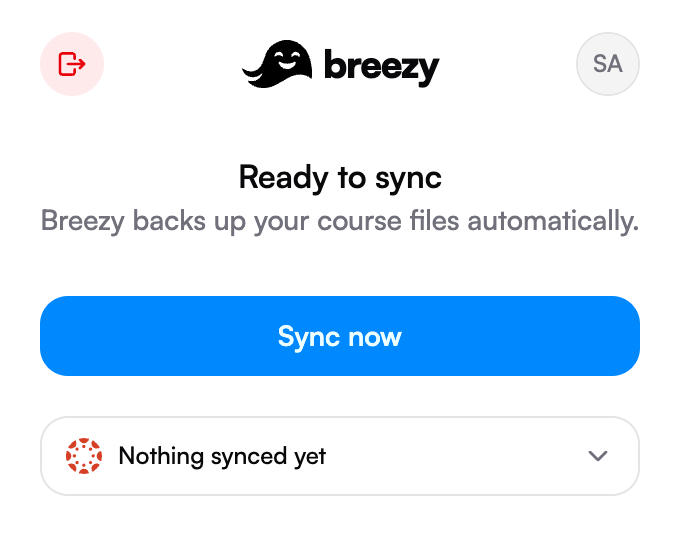
- Your course site is open and signed in. Open Canvas, Blackboard or Brightspace in a normal tab of that same browser, make sure you are signed in, then click the Breezy icon in the toolbar while that tab is in front. The popup should say “Ready to sync” and show your school's address.
The extension will not connect
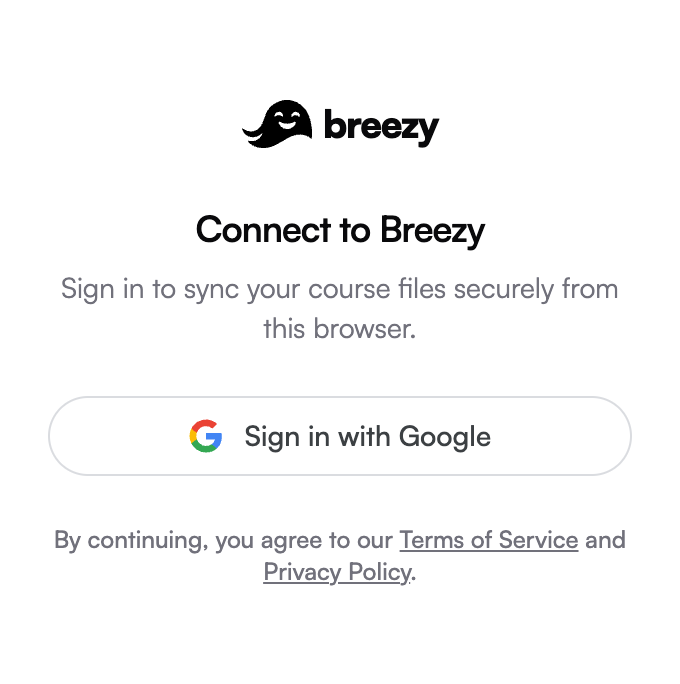
The connect page says “Extension did not respond.”, or the popup keeps showing “Connect to Breezy” after you have signed in on the website.
- Check that the extension is installed and switched on in this browser. In Chrome and other Chromium browsers open
chrome://extensionsand make sure Breezy is enabled. In Firefox openabout:addons. - On Firefox and Zen, reload the page. A tab that was already open when the add-on was installed can never hear from it, however many times you press Try again. Reload the Breezy tab, or open it again, then retry.
- Use a normal tab. The extension cannot reach a private window, an incognito window, a container tab or a different browser profile.
- Press Try again, or go back to the connect page. When the extension answers, the page says “Extension connected” and you can close it.
- If the page says “Could not connect the extension.” instead, the extension answered and something failed on the account side. Sign out of Breezy, sign back in, and try once more before writing to us.
Open your course site first
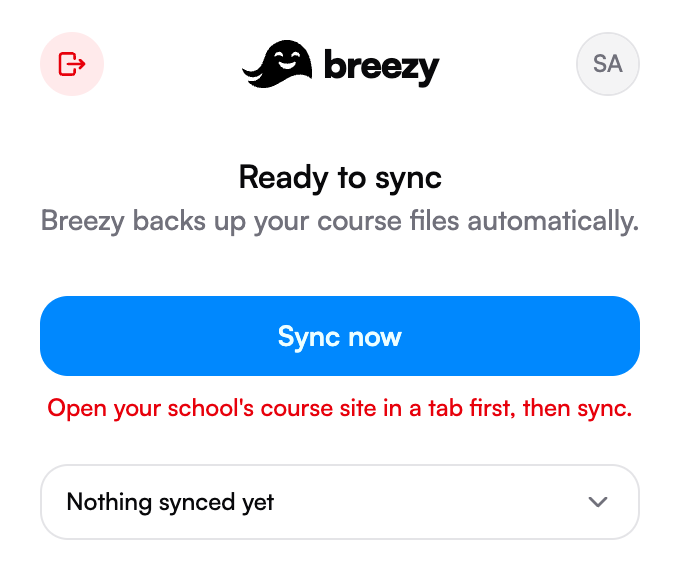
The popup says “Open your school's course site in a tab first, then sync.” Breezy reads the page in the tab in front of you, so it needs that tab to hold a website. Browser pages such as chrome://extensions, the new tab page, and files opened from your own computer are not somewhere a sync can read.
- Open your course site in this browser: Canvas, Blackboard or Brightspace.
- Click into that tab so it is the active one. A tab in another window does not count.
- Click the Breezy icon in the toolbar and press Sync now.
Breezy asks whether this is your course site
The popup asks “Is this your course site?” and names the address you are on. Plenty of schools run their courses on an address of their own, such as canvas.mit.edu or bcourses.berkeley.edu, and nothing in an address like that says which system is behind it. Breezy asks you rather than guessing.
- Check that the address in the card is your school's course site.
- Press “Yes, sync this site”. Your browser then asks for permission to read that address. Choose Allow.
- Breezy works out which system the site runs and starts syncing. It remembers the answer, so it asks once per school and Auto Sync picks the site up from then on.
Breezy needs permission to read your course site
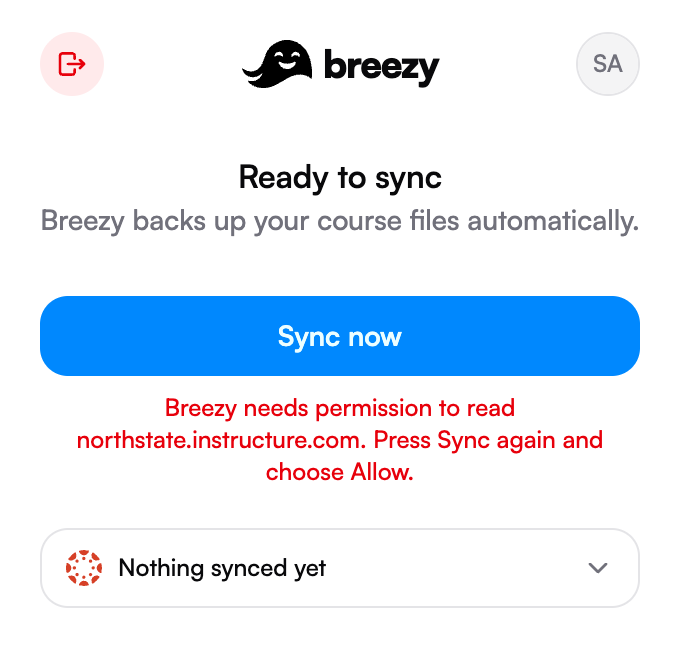
The popup says “Breezy needs permission to read” followed by your school's address, and “Press Sync again and choose Allow.” The extension asks your browser for access to each course site the first time you sync it, and the browser shows its own dialog.
- Press Sync now again. Your browser opens a permission dialog naming your school.
- Choose Allow.
- In Chrome the popup closes while the dialog is open. That is normal: choose Allow, then click the Breezy icon again to watch the sync run.
If the popup instead says “Your browser did not ask for permission to read” your school's address, the browser refused to show the dialog at all. Firefox older than version 128 cannot show it, and neither can a Zen build based on one. Update your browser, then press Sync now again.
Your course site signed you out
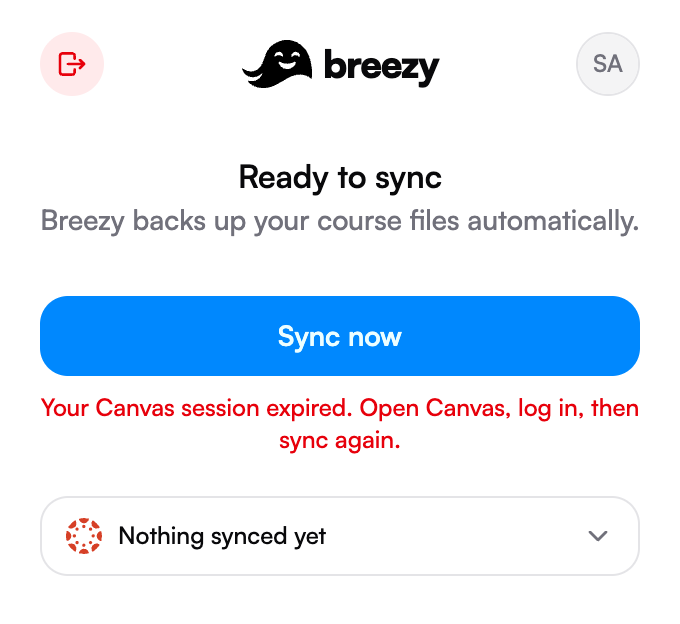
The popup says “Your Canvas session expired. Open Canvas, log in, then sync again.” or “Not signed in to Blackboard”. Breezy reads your course site with the same sign-in your browser already has, and it cannot sign in for you.
- Open your course site in a normal tab and sign in the way you usually do.
- Come back to that tab, open the popup, and press Sync now.
A sync looks stuck
A sync runs in three stages, and the button names the current one: “Scanning courses…”, then “Downloading files…”, then “Uploading…”. The first sync of an account reads every course, assignment and file you have, so it is the slow one. The box under the button names the site being read and, once Breezy has seen a few runs from your school, how long one usually takes.
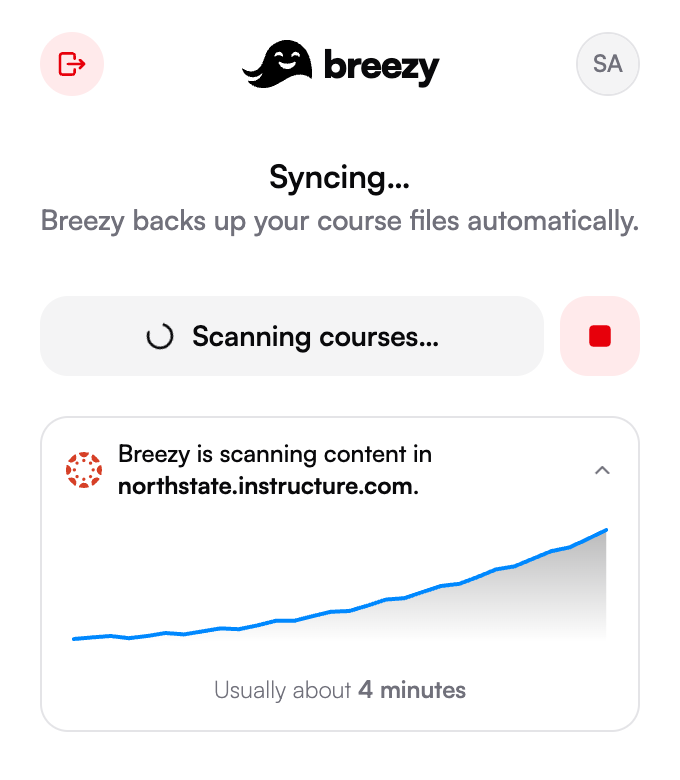
- Leave the browser open. Closing it, or letting the computer sleep, stops the extension mid-run. The next time you open the popup it says “Previous sync was interrupted — run it again.” Press Sync now and it picks up from the beginning.
- Open the box under the button. While a sync runs, the graph should keep moving. If it has been flat for several minutes and the estimate has long passed, press the red stop button and then Sync now.
- Check the dashboard. Items appear there as they arrive, so a sync that looks slow in the popup may already have filled your courses.
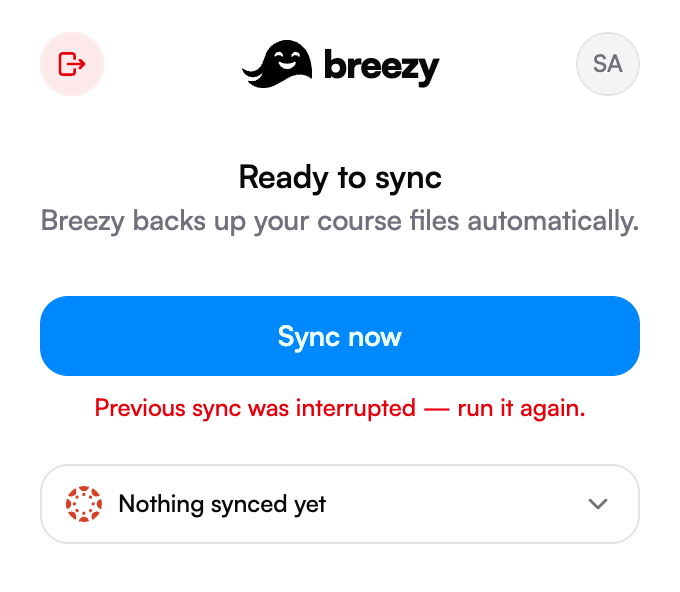
A run that never finishes is given up after 12 hours. When that happens, or when a sync ends before it reaches the end, the dashboard shows “Nothing came through on the last sync” and a notification tells you the sync stopped early. Open your course site in the connected browser and sync again.

Auto Sync did not run
Auto Sync starts a run when you open your course site in a connected browser, at most once an hour per site. It does not run on a schedule, and it cannot run in a browser that is closed.
- Open the popup and click your profile picture, top right. Check that the Auto Sync switch is on. When it is off, the popup says “Auto Sync is off. Back up with the button below.”
- If the last sync was less than an hour ago, nothing is wrong. Press Sync now whenever you want a run sooner.
- If you have never synced this course site by hand, do it once: an automatic run cannot ask for the permission described above.
Something is missing from a course
A sync can finish with a few items it could not read. The popup counts them under the graph, as in “3 failed, will retry next sync”, and the next run tries them again on its own. Large files are also read after the sync itself finishes, so a document can take a few extra minutes to become searchable.
- Breezy only reads what your course site shows to your account. A course that is hidden, concluded or unpublished in your course site does not sync.
- From Brightspace, Breezy deliberately does not read discussion posts, quiz questions or the list of other students in a course.
- If the same item fails run after run, write to us with the course and the item's name so we can look at why.
Breezy says Reconnecting
A screen reading “Reconnecting…” means the website cannot reach Breezy's servers. Your page is still there underneath and comes back on its own when the connection does. Check the status page to see whether the problem is on our side. If the status page is green, check your own connection and any VPN or campus network filter.
More than one browser or computer
The extension is installed per browser, and each install is connected to your account separately. Your profile's Extension tab lists every connected browser with the course sites it has synced from.
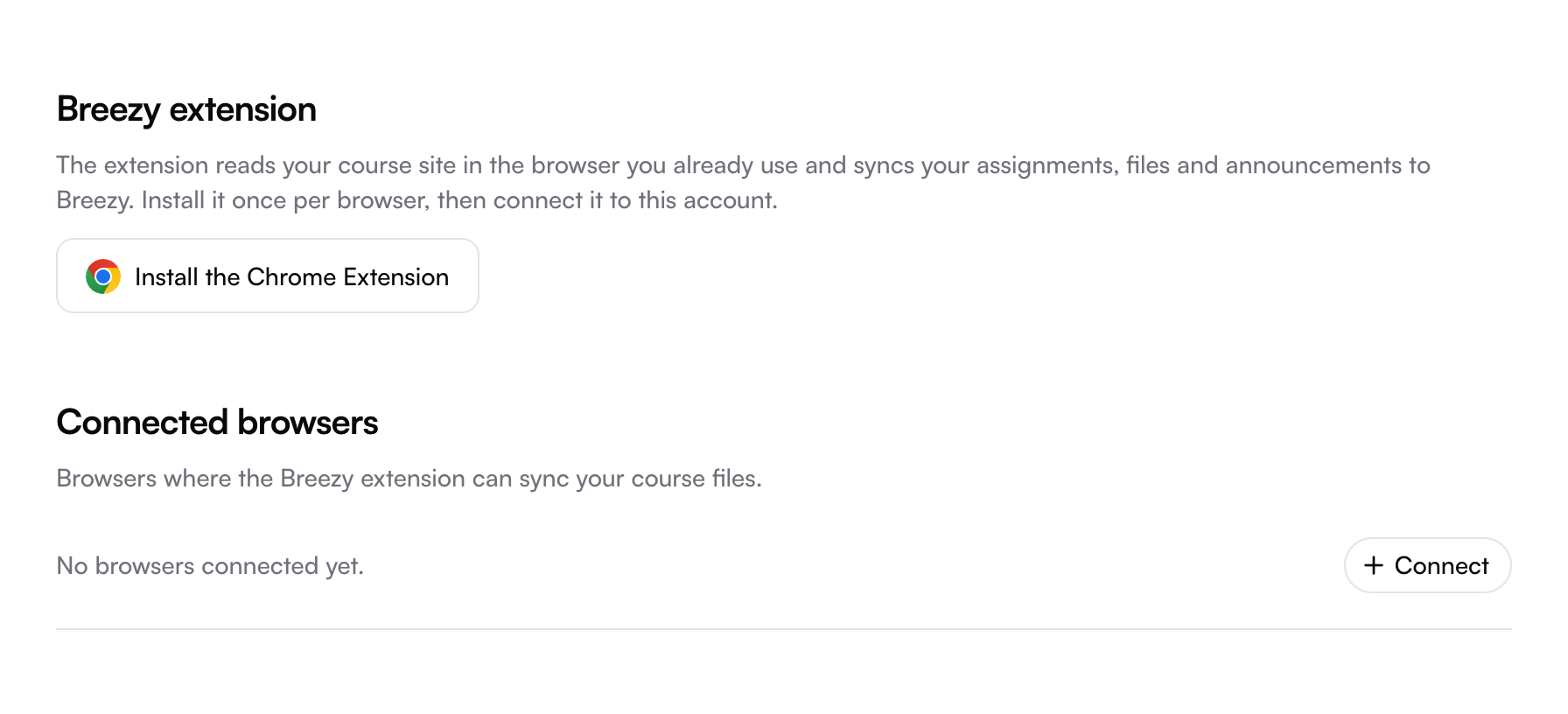
- To sync from a new computer, install the extension there and press Connect another browser in that tab, from that computer.
- A browser you have disconnected shows “Connect to Breezy” in its popup again. Sign in from the popup to reconnect it.
- Syncing the same course site from two browsers is fine. Breezy keeps one copy of each item.
Still stuck? Write to us
Support has the ways to reach us: the Discord, where an answer usually comes back the same day, and an email address for anything that should not be said in public. Either way, these details let a person answer in one reply rather than three:
- Which browser you are using, and its version.
- The extension's version, shown beside Breezy on
chrome://extensionsorabout:addons. - Your course site's address, for example your school's Canvas link.
- The exact message on screen, or a screenshot of the popup.
- Roughly when you pressed Sync, so we can find the run on our side.