On an iPhone or iPad, Apple Calendar can subscribe to your Canvas Calendar Feed itself: open the Calendar app, tap Calendars, then Add Calendar and Add Subscription Calendar, and paste the link you copied from Canvas. The Canvas app can start this for you from its Settings. The Google Calendar app on Android or iPhone cannot add a calendar from a link, so you add the Canvas link once in Google Calendar on a computer, and it then shows up in the app on your phone. The Canvas app also has a calendar of its own.
On an iPhone or iPad: from the Canvas app
The Canvas app (once called Canvas Student) has a shortcut into Apple Calendar.
- In the Canvas app, tap the Menu icon on the Dashboard, then tap Settings.
- Tap Subscribe to Calendar Feed.
- Tap Find, then tap Done to add the calendar.
Instructure notes that you can only view this calendar on your phone, not edit it, and that the steps are the same on an iPad.
On an iPhone or iPad: in the Calendar app
- Sign in to Canvas and click Calendar in the global navigation menu.
- In the sidebar of the calendar, click Calendar Feed.
- Copy the link in the URL field.
- On your iPhone or iPad, open the Calendar app, tap Calendars, then tap Add Calendar.
- Tap Add Subscription Calendar, paste the Canvas link and tap Find.
If you already subscribed on a Mac with iCloud as the location, the calendar is on your iPhone already. The Apple Calendar guide covers the Mac.
On Android, or in the Google Calendar app
Google says you can't subscribe to a calendar in the Google Calendar app on Android, iPhone or iPad; it takes a computer web browser. Add the Canvas link there once and the app on your phone picks it up.
- Sign in to Canvas and click Calendar in the global navigation menu.
- In the sidebar of the calendar, click Calendar Feed.
- Copy the link in the URL field.
- Open Google Calendar on a computer, in a web browser, signed in to the Google account you want the calendar in.
- On the left, next to Other calendars, click Add other calendars, then From URL.
- Paste your Canvas link and click Add calendar.
- On your phone, open the Google Calendar app with the same Google account, tap Menu at the top left, and check the box next to the Canvas calendar.
The Canvas app for Android offers a shortcut as well: on the Dashboard, tap the User Menu icon, then Settings, Subscribe to Calendar Feed and Subscribe. Instructure says you then sign in to the Google Calendar app to turn on the sync. The computer steps above are the route Google itself documents.
The Canvas app's own calendar
If you only need to look, the Canvas app shows your assignments and events without any subscription. Tap Calendar in the navigation bar on an iPhone, or on the Dashboard on Android. It opens on a week view, and the Calendars link chooses which courses appear. On an iPhone it only shows courses you have favorited on the Dashboard; on Android it shows up to 10 course and group calendars.
What the Canvas feed leaves out
- It is read-only on your phone. Canvas events cannot be changed in your calendar app.
- Changes are not instant. Your calendar app fetches the feed on its own schedule; Instructure says Google can take up to 24 hours.
- It covers one Canvas account. Instructure says the feed holds all of your Canvas calendars, meaning those of the account you copied it from.
- It covers a window. Instructure says the feed includes events from the past 30 days and up to 366 days ahead, and no more than 1,000 items.
- Canvas To Do items are not included.
- A course you join later is not added on its own. Instructure says to import the feed again after you enroll in a new course, so plan to redo the steps each term.
- It is Canvas only. A class on another course site needs that site's own feed, if it has one.
The Breezy way: due dates on your phone, no feed to subscribe to
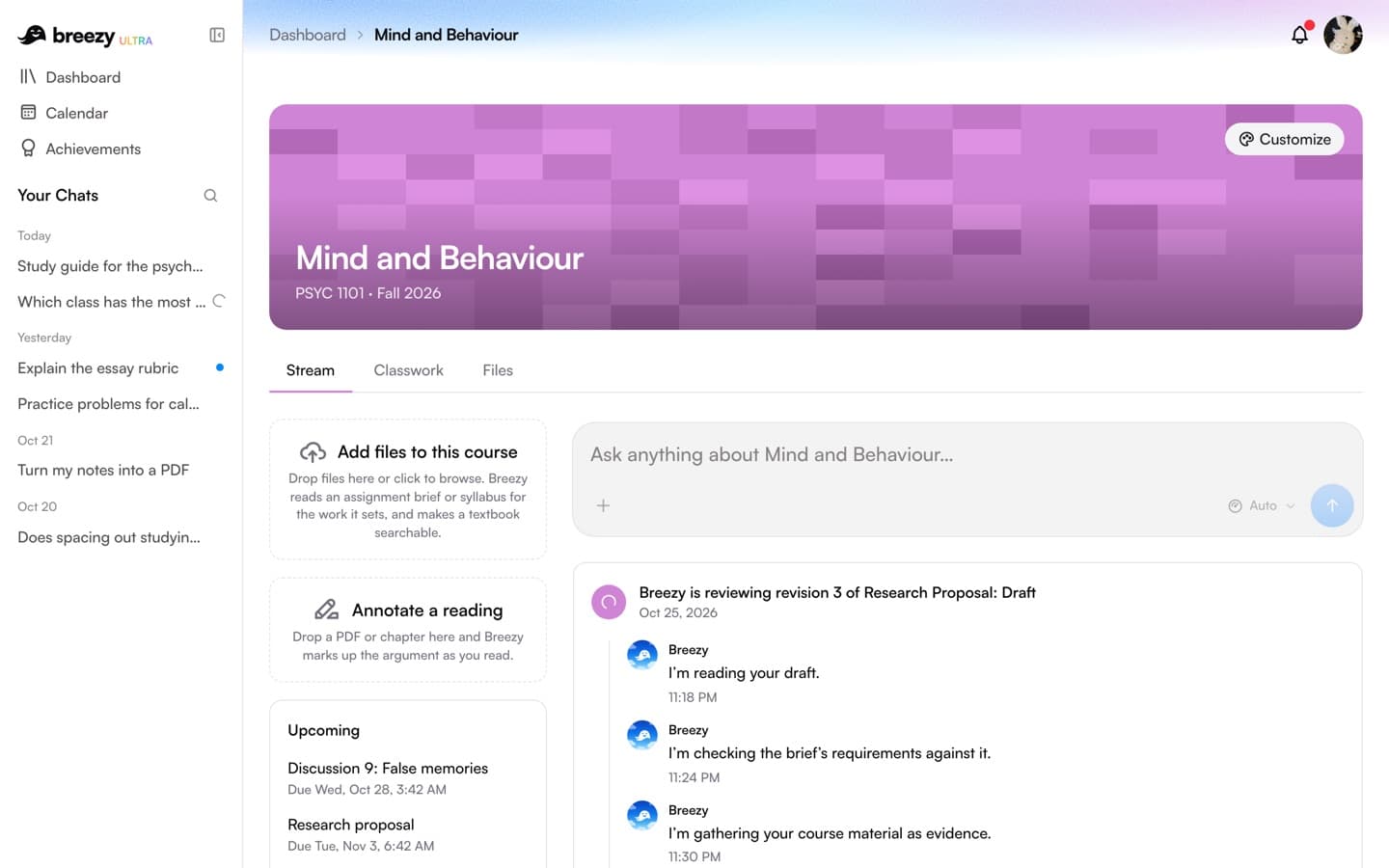
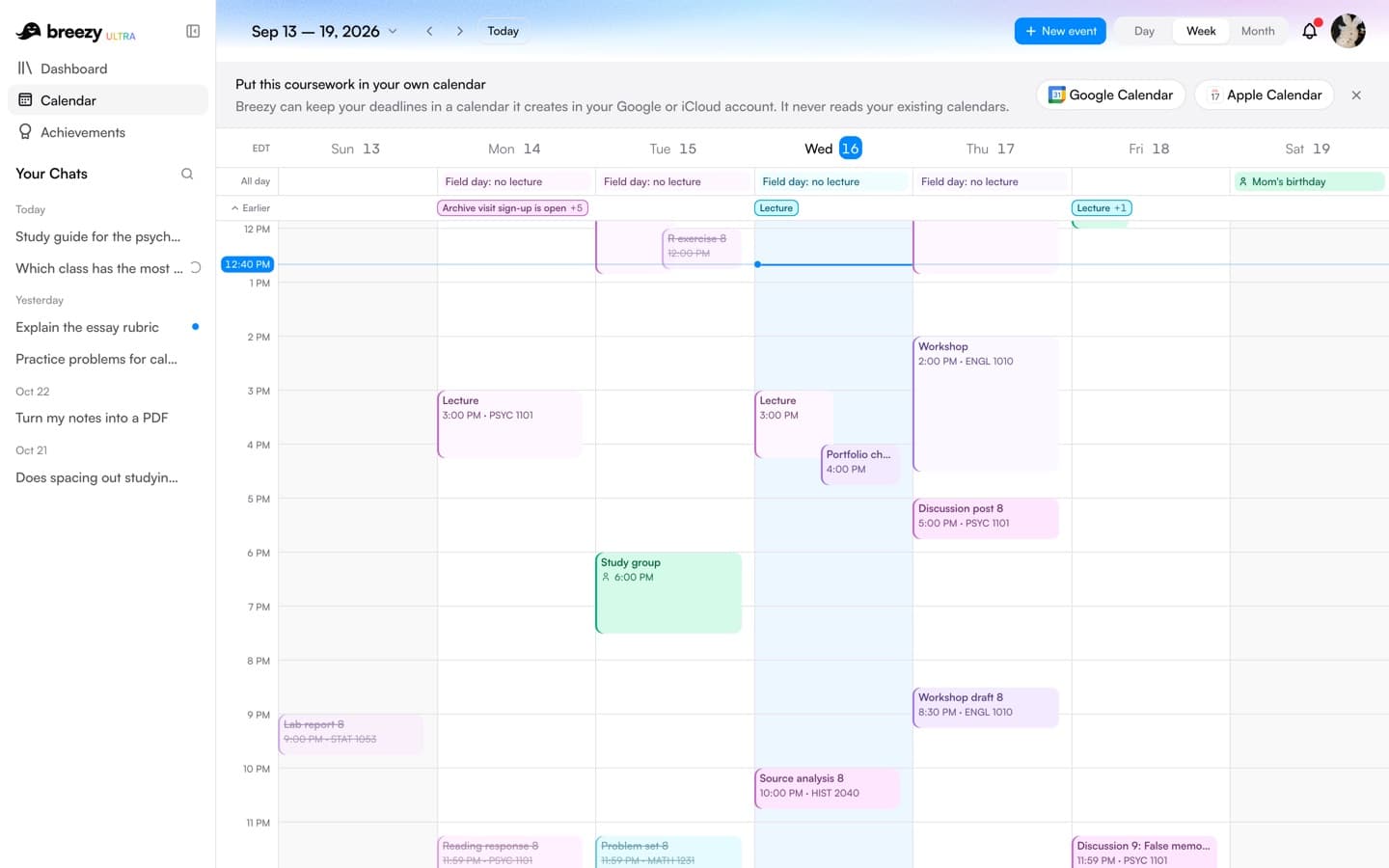
Breezy reads your courses through its browser extension and can add your assignment due dates to a calendar it creates, called Breezy · Courses, in your Google account or your iCloud account. The push is one way, from your courses into that calendar, and your phone shows it next to your other calendars. The extension runs in a desktop browser, not on a phone, so the setup happens once on a laptop or desktop.
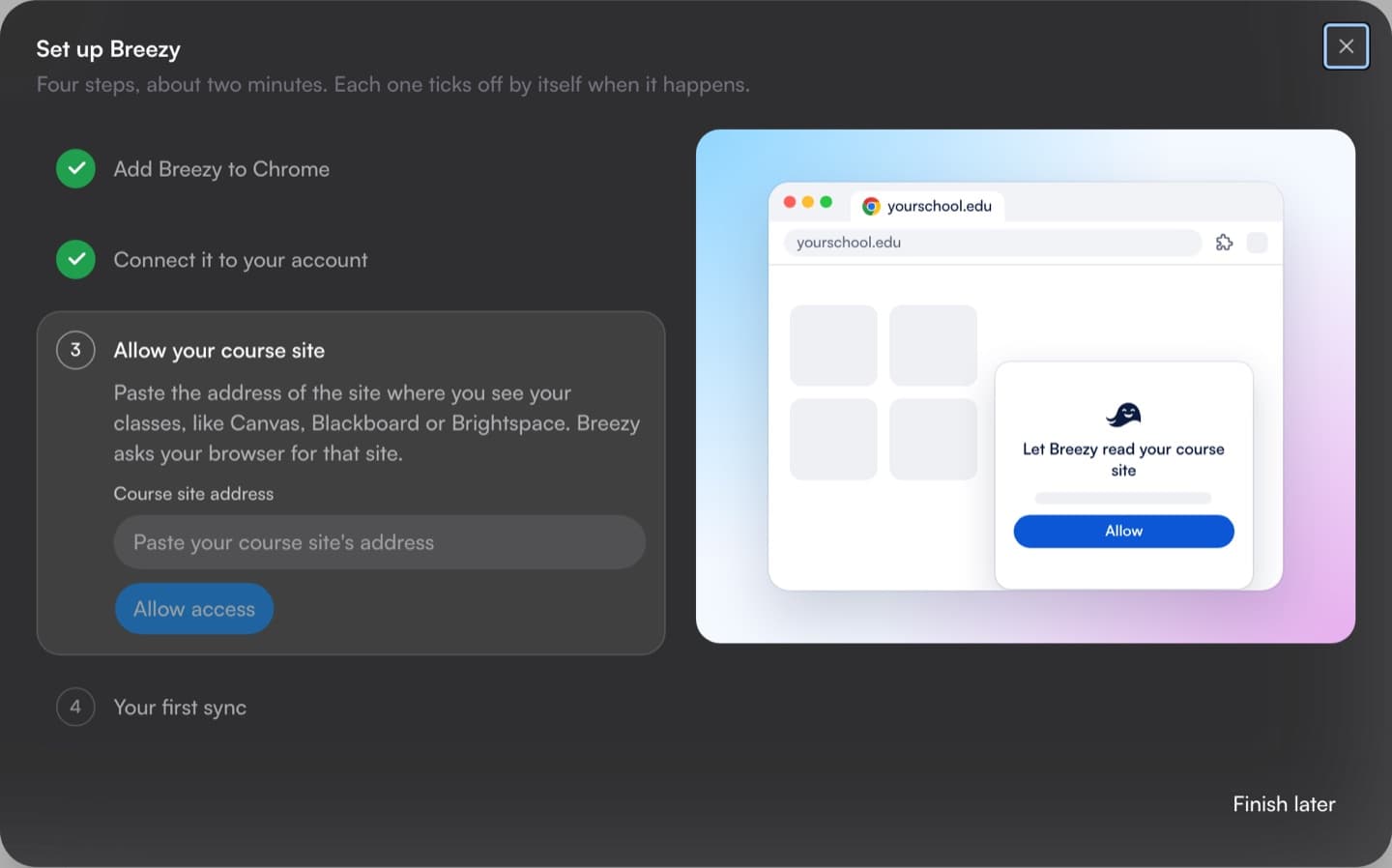
- On your computer, install the Breezy extension, sign in to Breezy, open Canvas and press Sync now in the extension. Breezy for Canvas covers this in detail.
- In Breezy, open Profile, then Connections, and connect Google Calendar or Apple Calendar. The Google and Apple guides walk through each.
- On your phone, open the Google Calendar app signed in to the same Google account, or, for Apple, turn on iCloud Calendar: Settings, your name, iCloud, See All, iCloud Calendar, then Use on this iPhone. Breezy · Courses appears with your other calendars.
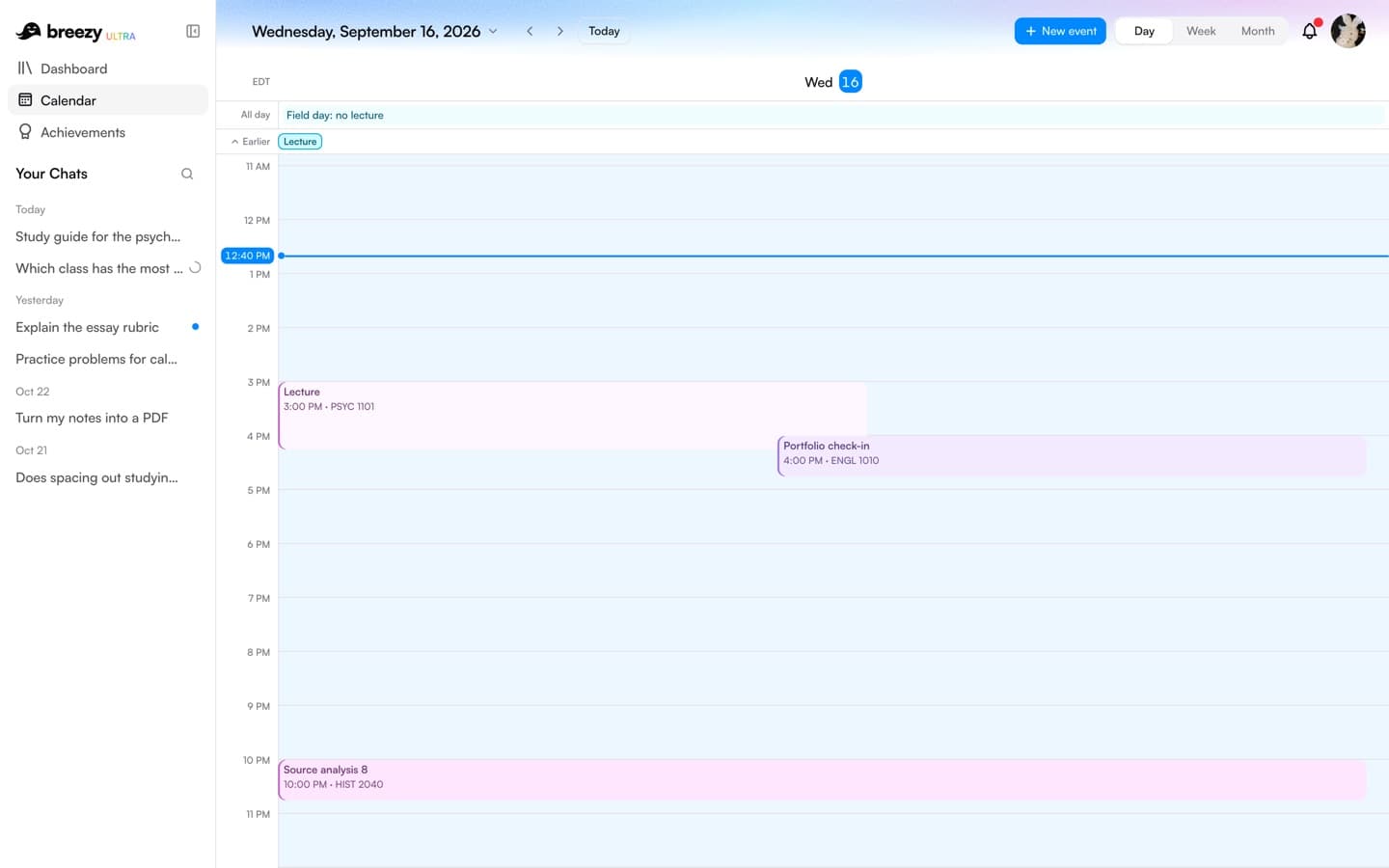
After that you can sign in to Breezy on any device, your phone included, and its own calendar shows the same deadlines, along with Blackboard due dates, which Breezy keeps on its calendar but does not add to Google or Apple Calendar.
One thing to know on a phone: Breezy · Courses changes when Breezy syncs, and syncs run in the browser on your computer. A due date your instructor moves reaches your phone after your next sync there. How it compares with the Canvas feed:
- It updates when your courses do. Breezy writes the events into Google Calendar or Apple Calendar itself, right after each sync, so there is no subscription waiting to be refreshed. A sync runs when you open your course site in a connected browser with Auto Sync on (at most once an hour) or press Sync now in the extension, so the calendar is as current as your last sync.
- New courses are picked up on their own. There is nothing to add again each term.
- Each deadline is a 30-minute event that ends at the due time, named for the assignment and its course, with reminders a day and an hour before.
- Only assignments with a due date are added, from 30 days ago to 240 days ahead. Other calendar events your instructors post, such as office hours, are not copied, and neither are Brightspace quiz dates or any Blackboard due dates.
- Coursework your course site never posted, like a deadline set in class, can go there too: ask Breezy in a chat to add it.
- The calendar belongs to Breezy. Changes you make to its events may be overwritten when the assignment changes on your course site, and if you delete the calendar, Breezy makes it again on the next sync. To stop, choose Disconnect in Profile, Connections, which deletes the calendar.
Troubleshooting
- The Canvas calendar is not syncing to the Google Calendar app on Android. Tap Menu and check that its box is ticked. If it is not listed, tap Menu, then Settings, select the calendar (tap Show more if you can't find it) and turn on Sync. Google says events can take a while to show up after that.
- Breezy · Courses is not on your iPhone. Check that iCloud Calendar is on for this iPhone and that the phone is signed in to the same Apple Account you connected in Breezy. Then tap Calendars and select it in the iCloud section.
- A course is missing from the Canvas app's calendar on your iPhone. Favorite the course on the Dashboard; the app only shows favorited courses.
- A new course is missing from the feed. Subscribe again; Instructure says a course you enroll in after subscribing is not added otherwise.
- A Canvas assignment is not on the calendar at all. If it has no due date, Canvas lists it under Undated items instead of on a day. If your instructor has not published it yet, Instructure says it is invisible to students, so it will appear once it is published.
- A whole course is missing from the Canvas calendar. Canvas shows up to 10 courses and groups at a time and selects the first 10 for you, so a later one can be switched off. Check the box next to the course in the calendar list.
- A Canvas To Do item is missing from the feed. Instructure says To Do items are not part of it; only events and assignments are.
More calendar guides
- Sync your Canvas calendar to Google Calendar: Canvas's Calendar Feed link, step by step, what it leaves out, and the Breezy way.
- Add your Canvas calendar to Apple Calendar: Subscribing on a Mac or an iPhone, and putting Canvas due dates in iCloud with Breezy.
- Add your Canvas calendar to Outlook: Subscribing in Outlook on the web or the Outlook app, and what to do when it fails.
- Add your Brightspace or Blackboard calendar to Google Calendar: Where each site hides its calendar link, and what Breezy can and cannot add yet.
- Everything on the Breezy blog, newest first.
New to Breezy? The homepage shows the workspace your courses sync into, integrations lists every course site it works with, pricing compares the plans, and troubleshooting covers a sync that stalls.
Breezy is an independent product. It is not affiliated with or endorsed by the companies behind the course sites and calendar apps named on this page.